Desk ergonomics
Desk Work and Neck Pain: Build a Setup That Lets You Move
An evidence-based desk setup reduces avoidable effort without locking you into one pose. Adjust your screen, chair, input devices and work rhythm.
By Neckly Editorial Team · Evidence reviewed 2026-08-29
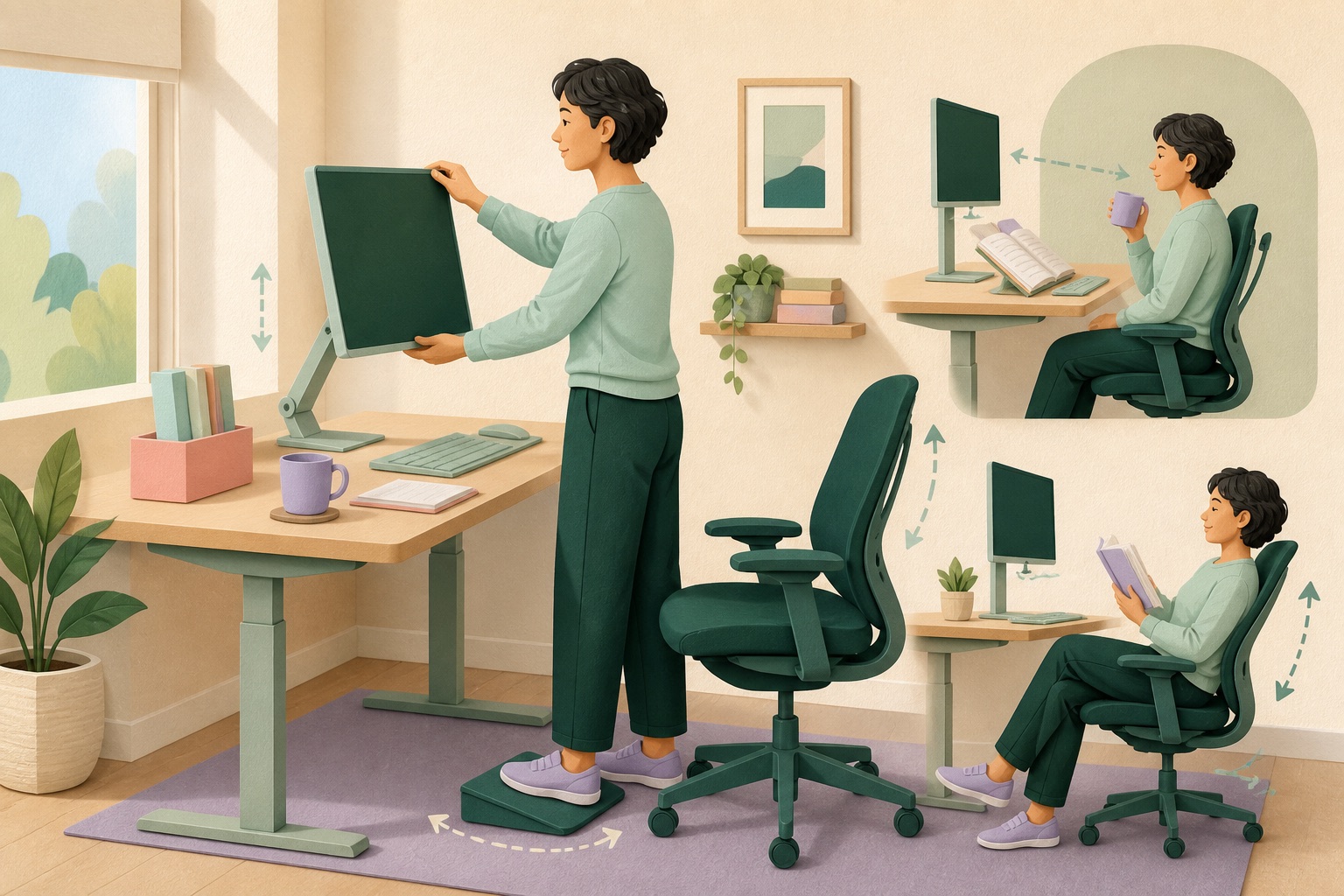
Ergonomic advice often arrives as a photograph: feet flat, elbows at 90 degrees, screen at eye level, back straight. The picture is tidy. A workday is not.
You read, type, sketch, join calls, look at a second screen and reach for a phone. Your body changes shape because the task changes. A useful desk setup does not force every task into one “correct” pose. It reduces avoidable effort and makes the next comfortable position easy to reach.
That distinction matters when desk work and neck pain begin to travel together. Furniture can help, but no chair cancels eight hours of uninterrupted concentration. The strongest plan combines a workable setup, manageable visual demands, varied positions and a rhythm that lets the neck recover.
Key takeaways
- Ergonomics changes exposure; it does not guarantee that pain will disappear.
- Start with the visual target and input devices. A low screen or distant keyboard can pull the head and arms forward all day.
- Support the body without pinning it in place. The chair should make several comfortable positions possible.
- Evidence for office ergonomic interventions is mixed, and multi-component programs often make more sense than buying one product.
- Active breaks and postural shifts have reduced new-onset neck pain in at least one cluster-randomized trial, but there is no universal perfect interval.
Why can desk work become hard on the neck?
Desk work is usually low-force and high-duration. The head is not lifting a heavy object, but it may remain oriented toward a screen for hours. The hands perform small repeated actions. The eyes stay at one focal distance. Attention narrows, spontaneous movement falls, and small setup problems repeat thousands of times.
Several demands can overlap:
- A screen that is too low encourages head and upper-back flexion.
- A screen that is too far away encourages leaning forward.
- A keyboard or mouse that is too far away pulls the shoulders and arms from support.
- A laptop couples the screen and keyboard, so one can be well placed only by compromising the other.
- A second monitor placed far to one side creates repeated or sustained rotation.
- Small text, glare or uncorrected vision changes how close you need to be.
- High workload extends the time before you notice any of it.
None of these exposures is a diagnosis. Together, they can create a day in which the neck and shoulders do more static work than they currently tolerate.
What does the evidence say about office ergonomics?
The evidence is more modest than furniture advertising suggests. A Cochrane review of ergonomic interventions for preventing work-related upper-limb and neck disorders in office workers found the evidence unclear or low quality for many interventions. Some supports and alternative input devices showed possible benefits for particular outcomes, but the review did not establish one reliable office fix for everyone (Hoe et al., 2018).
Why is this difficult to study? “Ergonomics” can mean a new chair, an arm support, training, workstation adjustment, breaks, exercise or all of them. Workers start with different symptoms and jobs. Adherence varies. A perfectly adjusted station on assessment day may drift as people share desks, work from home or return to old habits.
Recent multi-component research is instructive. A stepped-wedge cluster randomized trial among Swiss office workers combined neck exercise, health-promotion workshops and workplace ergonomics over 12 weeks and reported reductions in neck-pain outcomes (Aegerter et al., 2026). Because several elements changed together, the result does not tell us that monitor height alone was the active ingredient. It supports a broader approach: capacity, knowledge, environment and behavior work together.
Ergonomic changes are still worthwhile. They are sensible when they make a task easier immediately. Just judge them by comfort, reach, visibility and movement, not by whether the setup resembles a diagram.
Start with what your eyes need to see
The neck often follows the eyes. If you cannot comfortably read the screen from the back of the chair, you will move closer. Telling yourself to retract the chin will not solve small text or glare.
Monitor distance
Place the primary display far enough away that the whole screen is easy to scan, but close enough that normal text is readable without leaning. “An arm’s length” is a rough starting point, not a rule. Screen size, resolution, eyesight and task all matter. Increase interface scaling before moving the head toward tiny content.
Monitor height
For many people, the top area of the display at or slightly below eye level lets the eyes scan downward without large sustained head flexion. Bifocal or progressive-lens users may need a lower screen to avoid extending the neck while looking through a specific lens zone. The correct height is the one that supports easy viewing with a relaxed head—not a universal number.
Multiple displays
If one monitor holds most of the work, center it. If two are used equally, place the join near the midline and swivel the chair or whole body rather than holding the neck turned. For a temporary side task, occasional rotation is ordinary; for six hours of primary work, layout matters.
Documents and phones
Put frequently referenced paper on a stand near the screen. Use a phone stand if the phone remains part of the workflow. Every low object creates another reason to drop the head, and every distant object creates another reason to reach.
Both OSHA’s computer workstation eTool and Mayo Clinic’s office ergonomics guide provide practical starting points. Treat them as adjustment checklists, then test the result with your own tasks.
Bring the keyboard and mouse into the supported zone
Input devices determine where the arms live. If the keyboard is far forward, the trunk and head often follow. If the mouse sits beyond the numeric keypad, one shoulder may remain slightly abducted for much of the day.
Bring both devices close enough that the upper arms can rest near the torso and the shoulders do not have to hover. Keep the mouse beside the keyboard. If you use a large keyboard but rarely need the numeric pad, a compact keyboard can shorten the reach.
The forearms may rest lightly on a desk, chair arms or dedicated supports. Avoid sharp pressure on the wrist or elbow. Support should reduce muscular effort without trapping movement.
Laptop users face a physical compromise: raising the screen raises the keyboard. For a long session, a separate keyboard and pointer let the laptop sit on a stand or stack of stable books. For a short email, the trade-off may not justify a full setup. Match the intervention to the duration.
What should the chair do?
A chair should support the task and allow position changes. Expensive does not automatically mean suitable, and “ergonomic” is not a regulated promise of comfort.
Check five relationships:
- Feet: supported on the floor or a footrest, so you are not sliding forward to find stability.
- Seat depth: enough room behind the knees that the back can use the backrest without pressure at the knee crease.
- Backrest: positioned so leaning back feels available, not so aggressive that it pushes you away from the work.
- Armrests: low and narrow enough that shoulders remain easy and the chair can approach the desk.
- Height: coordinated with the desk and input devices, not adjusted in isolation.
Do not force the lumbar spine into a dramatic arch. A small cushion or rolled towel can be useful if it makes the backrest fit; remove it if it makes you perch or brace.
The chair should permit at least a few modes: upright and active for a precise task, slightly reclined for reading, and easy exit for standing. If you cannot move because the “correct” setup is too exact, it is not supporting a real workday.
Is a standing desk better for neck pain?
A standing desk is a way to change exposure, not a treatment by itself. Standing can make it easier to move, alter hip and trunk position, and break a long sitting bout. Standing still for hours can also become uncomfortable.
The value comes from transition. Raise the desk for a call, a reading block or a short administrative task. Lower it when precision work is easier seated. Keep the screen and input devices coordinated in both positions; a standing desk with a low laptop can simply recreate the same head-flexion problem at a different height.
Shoes, floor, fatigue and balance matter. Shift weight, use a small foot support, or walk briefly. You do not need to split the day into a perfect ratio.
How often should you take a break?
There is no single interval proven best for every office worker. A 2019 Cochrane review of work-break schedules found low-quality and inconsistent evidence, with varied break types and outcomes (Luger et al., 2019). That uncertainty is a reason to avoid false precision, not a reason to remain still all day.
A six-month cluster-randomized trial among high-risk office workers tested active breaks and postural shifts. New-onset neck pain occurred in 17% of participants in each intervention group versus 44% in the control group (Waongenngarm et al., 2021). The result is encouraging, though one trial in a specific population cannot supply a universal schedule.
Choose a rhythm that fits the work:
- Micro-change: every few minutes, let the eyes move, uncross the legs, release the mouse or change backrest pressure.
- Task boundary: at the end of a message, call, paragraph or code run, stand or look farther away.
- Short active break: periodically walk, refill water or perform a few comfortable movements.
- Longer recovery: protect meals and non-screen time rather than stacking screen tasks through the entire day.
The best break is one you actually take. Our guide to posture breaks turns the research into a low-friction routine.
A desk audit you can do in ten minutes
Do this during the task that usually triggers symptoms, not in an empty room.
Minute 1–2: Observe without correcting
Where are the eyes? Which object are you chasing? Are the elbows supported? Is one shoulder reaching? Do you repeatedly lean forward to read?
Minute 3–4: Fix visibility
Increase text size, reduce glare, move the screen closer or raise it modestly. Put the active window where the gaze naturally lands.
Minute 5–6: Fix reach
Bring keyboard and mouse close. Move the phone. Clear enough desk depth that the forearms can rest when useful.
Minute 7–8: Fit the chair
Support the feet. Adjust height and armrests. Make sure the chair can approach the desk. Try both upright and slightly reclined positions.
Minute 9: Create one alternate position
Set up a standing option, a second chair angle or a place for reading away from the keyboard. Variation is more likely when the alternative is ready.
Minute 10: Choose a transition cue
Use a natural event: calls, page changes, completed tasks or a calm reminder. Decide what the cue means—perhaps stand, reset the head gently or walk for one minute.
Run the experiment for several days. Keep the changes that reduce effort. Undo the ones that create new problems.
What not to buy first
When pain appears, marketing makes every accessory look urgent. Pause before buying:
- A posture brace may restrict movement and outsource the very capacity you want to build.
- A hard cervical collar is a medical device for specific indications, not an everyday desk accessory.
- A chair cannot fix a low laptop if the task layout stays the same.
- A standing desk cannot create breaks if you stand motionless.
- A vertical mouse may help some hands or shoulders, but it does not compensate for a long reach.
- A monitor arm is useful only if you actually adjust the screen to the task.
Start with books, cushions, text settings and layout. If those reveal a stable need, buy the tool that solves that need.
What if the setup looks good and your neck still hurts?
That does not mean you failed ergonomics. Neck pain can involve sleep, stress, headache, previous injury, physical capacity, workload and other health factors. The environment is one part of a multifactorial problem.
Consider whether work volume changed, recovery fell or symptoms are spreading. Gradual strengthening or general activity may be useful; our evidence review of tech-neck exercises is a starting point, not an individualized prescription. Persistent, recurrent or worsening symptoms deserve assessment by a qualified healthcare professional.
Seek prompt care for severe pain after trauma, new weakness or numbness, loss of coordination, fever with marked neck stiffness, fainting or a sudden unusual severe headache.
Where Neckly fits at a desk
Neckly does not replace workstation adjustment. It can help with the attention gap that remains after the desk is reasonably arranged.
During an active session, Neckly uses motion from supported headphones to compare the head with a position you calibrate. If forward, backward, left or right tilt continues, it can offer a gentle cue. That cue might lead you back toward the baseline, but it might reveal something more useful: the document is too low, the screen has drifted to one side, or the current task needs a different position.
Neckly cannot see your shoulders, chair or whole-body alignment. It does not decide that one posture is correct. Think of it as a quiet tap on the shoulder from your own setup: you have been here for a while—would another position work better?
References
- Hoe VCW, et al. Ergonomic interventions for preventing work-related musculoskeletal disorders of the upper limb and neck among office workers. Cochrane Database of Systematic Reviews. 2018. doi:10.1002/14651858.CD008570.pub3
- Aegerter AM, et al. A multi-component intervention (NEXpro) reduces neck pain: a randomized controlled trial among Swiss office workers. Scandinavian Journal of Work, Environment & Health. 2026. doi:10.5271/sjweh.4254
- Luger T, et al. Work-break schedules for preventing musculoskeletal symptoms and disorders in healthy workers. Cochrane Database of Systematic Reviews. 2019. doi:10.1002/14651858.CD012886.pub2
- Waongenngarm P, et al. Effects of an active break and postural shift intervention on preventing neck and low-back pain among high-risk office workers: a 3-arm cluster-randomized controlled trial. Scandinavian Journal of Work, Environment & Health. 2021;47(4):306–317. doi:10.5271/sjweh.3949
- Occupational Safety and Health Administration. Computer Workstations eTool. OSHA guidance
- Mayo Clinic. Office ergonomics: Your how-to guide. Mayo Clinic guidance
Notice sustained head tilt—without a camera.
Neckly uses supported headphone motion during active iPhone sessions. It supports awareness; it does not diagnose pain or assess whole-body posture.
Download Neckly on the App Store